

Most kids nowadays enjoy playing with their gadgets. If you have a niece or nephew, you've probably noticed that many of them spend a lot of time on their mobile phones. Have you ever observed what games they're playing? Chances are, it's either Roblox or Minecraft—or even both.
Whether you're a supportive or cool aunt or uncle, let’s explore the simple tools these kids might need to start live streaming once they reach the appropriate age (not that we’re promoting excessive screen time). It’s helpful to understand the basics of gaming and live streaming, and to explore gift ideas they would surely appreciate in the future—like a reliable USB gaming microphone to capture their voice clearly, or other essential gaming audio equipment that improves communication and creativity.
Roblox is more than just a game—it’s a platform where millions of players create, share, and explore unique worlds. With its massive popularity, especially among younger audiences, many beginners are curious about how to share their gameplay with the world through live streaming. Whether you want to broadcast your building skills, show off epic battles, or entertain viewers with your commentary, streaming Roblox can be a fun and rewarding experience—especially when you’re using a proper streaming microphone for Roblox instead of a built-in mic.
This guide is designed to help beginners get started with Roblox streaming, from the gear you need to setting up your stream, and even how to legally and effectively engage with your audience.
We’ll also answer frequently asked questions about microphones and audio setup—because clear sound is just as important as sharp visuals when choosing the best mic for game streaming.
Let’s dive into the essentials of streaming Roblox successfully!
Gaming Microphone Guide: Choose the Right Mic for Roblox Streaming
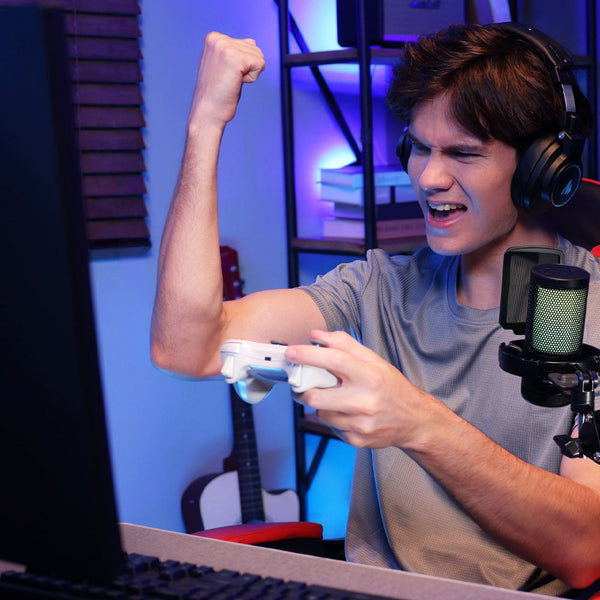
A gaming microphone is a dedicated audio device designed to capture your voice clearly while you’re playing and streaming games like Roblox. Unlike built-in headset mics or laptop microphones, a quality gaming mic delivers richer, cleaner sound—so your commentary doesn’t get lost in the game audio, background noise, or crowd chatter. Choosing the right mic is a key part of your gaming mic setup for Roblox, especially if you want your stream to sound polished and engaging.
Headset Microphones
Headset mics come built into gaming headsets and are popular due to convenience and integrated audio. They’re great for beginners because they combine headphones and a mic in one. However, their mic quality is often average, picking up unwanted noise and offering limited vocal richness. If you’re serious about streaming, upgrading to a dedicated mic—such as a budget gaming microphone—can significantly improve audio clarity.
Pros:
-
Easy setup
-
All-in-one solution
-
Good for casual gaming
Cons:
-
Lower audio fidelity
-
Picks up background noise
-
Less professional sound quality
USB Microphones
USB gaming microphones are the most popular choice for streamers because they’re plug-and-play—just connect to your computer and start streaming. These mics offer excellent sound quality without the need for additional gear, making them the best gaming mic for beginners who want simplicity without sacrificing clarity.
USB mics are ideal for creators who want an easy entry point into streaming and are often compared in discussions about USB vs XLR gaming microphone setups.
Pros:
-
Easy setup (no extra equipment)
-
Good audio quality for most streamers
-
Perfect for desktops and laptops
Cons:
-
Limited audio customization compared to XLR
-
Some models may pick up room noise
XLR Microphones
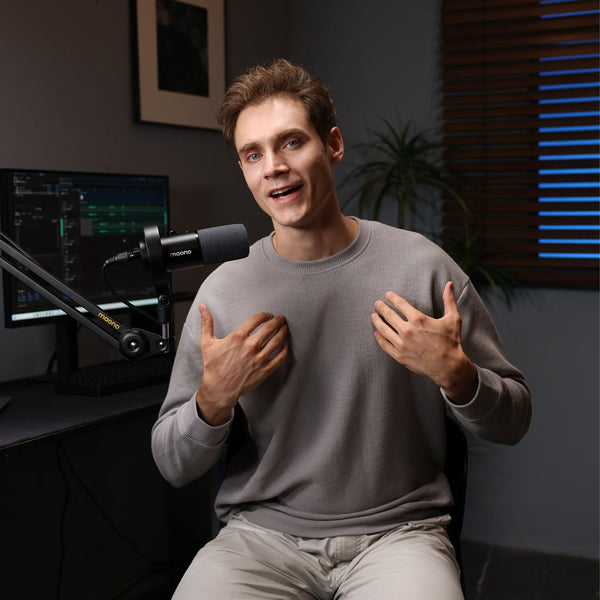
An XLR gaming microphone is the top choice for advanced streamers and content creators who want maximum control over their sound. These XLR microphones connect to an audio interface or mixer, allowing fine-tuning of gain, EQ, and effects. While they deliver superior audio, XLR setups require more investment and technical knowledge.
If you’re comparing USB vs XLR gaming microphone options, XLR is best for long-term growth and professional-quality streams.
Also Read: XLR Mics for Streaming: Gaming: Best Picks, Setup Tips & Audio Quality
Pros:
-
Superior sound control and depth
-
Highly customizable setup
-
Excellent for studio-style streaming
Cons:
-
Requires extra gear (interface/mixer)
-
More expensive and complex setup

Common Questions Among Beginners
If you're new to streaming, you probably have a ton of questions. Don’t worry—you’re not alone! Below are the most common questions that beginner Roblox streamers often ask, with simple answers to get you going.
How do I stream Roblox on YouTube from my desktop PC?
To stream Roblox on YouTube from a desktop PC, follow these steps:
-
Download Streaming Software
Install OBS Studio or Streamlabs. Both are free and user-friendly for beginners.
-
Set Up Your Stream
-
Add a “Game Capture” source to capture Roblox.
-
Add your webcam and microphone inputs as separate sources.
-
Connect to YouTube
-
Go to YouTube Studio > Go Live.
-
Copy the Stream Key and paste it into OBS/Streamlabs.
-
Start Streaming
-
Hit “Start Streaming” in your software and you’ll be live on YouTube!
Can I stream Roblox on mobile (iPhone or Android)?
Yes, you can stream Roblox on mobile, although it’s a bit trickier:
-
For Android: Use apps like Streamlabs Mobile or Mobizen.
-
For iPhone: Use the built-in screen recording tool along with third-party apps like StreamChamp or Streamlabs, but Apple’s limitations may require a Mac for full compatibility.
-
You’ll also need to sign in to your YouTube or Twitch account to go live.
Pro Tip: Use a tripod or phone mount and a USB wireless microphone for a better streaming experience.
How do I add my webcam and mic to my Roblox stream?
In your streaming software (OBS or Streamlabs):
-
Webcam: Add a “Video Capture Device” source and select your camera.
-
Microphone: Add an “Audio Input Capture” source and choose your microphone.
-
Position and resize your webcam overlay so it doesn’t block important game visuals.
What is a capture card?
A capture card is a hardware device used to stream or record from consoles (like Xbox or PlayStation) or high-performance setups. It takes the video output from your device and converts it into a streamable format.
Do I need a capture card to stream Roblox?
No, if you’re playing Roblox on PC or mobile, you do not need a capture card. Capture cards are mainly for console gaming. Software like OBS Studio can capture and stream directly from your screen.
How do I record and stream Roblox at the same time?
OBS Studio allows you to record and stream simultaneously:
-
Go to Settings > Output, then enable “Recording” alongside “Streaming.”
-
Choose your desired video quality and storage path for recordings.
This lets you create highlight reels from your stream or upload edited content later.
What is bitrate?
Bitrate is the amount of data transmitted per second in your stream. It affects video quality and requires stable internet.
-
Measured in kbps (kilobits per second).
-
Higher bitrate = better quality but more internet bandwidth.
What is the best bitrate and resolution for streaming Roblox?
Here’s a good starting point:
-
Resolution: 720p or 1080p
-
Bitrate:
-
720p: 2,500–4,000 kbps
-
1080p: 4,000–6,000 kbps
-
FPS: 30 or 60 depending on your PC and internet
Test your settings and adjust to what your hardware and internet can handle.
How can I interact with my viewers while streaming Roblox?
-
Use YouTube or Twitch live chat features.
-
Set up a Chat Box overlay in OBS/Streamlabs.
-
Use a second monitor or your phone to keep an eye on comments.
-
Greet viewers by name, answer questions, and create polls or challenges for interaction.
Engaging with your audience builds loyalty and makes your stream more fun!
Is it legal to stream Roblox games with copyrighted music?
No. If you're playing music you don’t own or have permission to use, your stream may get muted, demonetized, or taken down due to copyright violations.
Tips:
-
Use royalty-free or DMCA-safe music from platforms like Epidemic Sound, StreamBeats, or YouTube’s Audio Library.
-
Avoid playing in Roblox games that contain copyrighted background music unless muted.
How do I build a streaming schedule around Roblox events?
Roblox frequently hosts in-game events, promotions, and seasonal updates. To make the most of these:
-
Follow Roblox on Twitter/X or Discord for updates.
-
Schedule streams during high-traffic times (after school or weekends).
-
Promote your stream 24 hours in advance through YouTube/Twitch posts or social media.
-
Consider streaming new Roblox experiences, game releases, or event hunts.
Consistency and timing can help grow your audience.
FAQs on Gaming Microphone:
What microphone should be used for Roblox streaming?
Audio quality plays a major role in your stream’s professionalism. Viewers will tune out if your voice is hard to hear, distorted, or muffled. A good microphone for PC gaming ensures your commentary is clear and enjoyable.
Here are two excellent mic options for Roblox streamers:
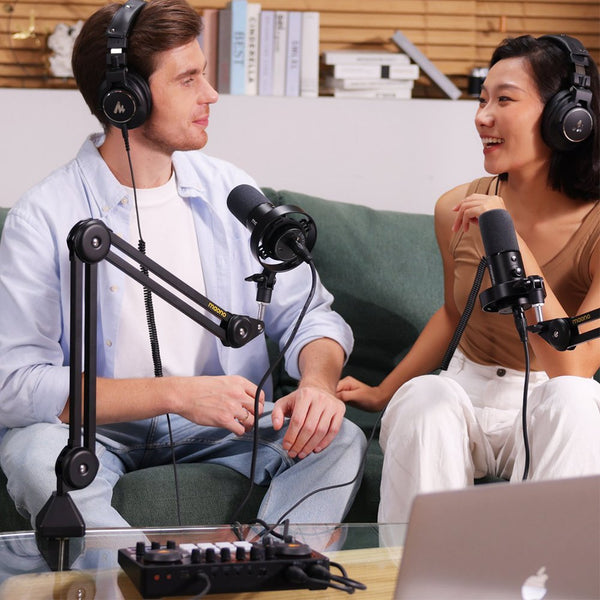
Maono PM500 XLR Microphone
-
Ideal if you want an XLR gaming microphone for studio-style streaming
-
Best for creators investing in high-end gaming audio equipment
-
Type: Condenser (XLR mic)
-
Why It’s Great:
-
Broadcast-quality sound
-
Ideal for serious desktop streamers
-
Works with audio interfaces for maximum control
-
Best Use: Studio-style streaming with high-quality voice narration
Tip: Pair your microphone XLR setup with an audio interface like the MaonoCaster for full control over gain, EQ, and monitoring. It’s also a good stand alone microphone for gaming if you’re building a pro setup from scratch.
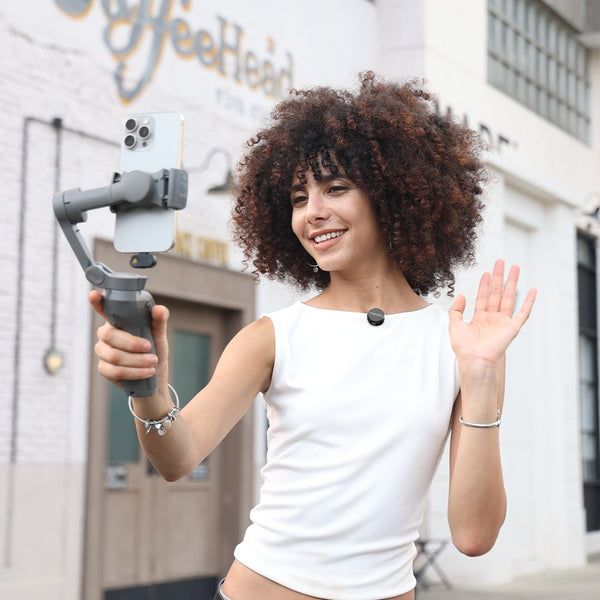
Maono DM40 USB Wireless Microphone
-
A flexible wireless gaming microphone with plug-and-play convenience
-
Great for casual or mobile streamers who want freedom of movement
-
Type: USB Wireless Lavalier
-
Why It’s Great:
-
Wireless microphone freedom
-
Plug-and-play USB receiver
-
Great for mobile streaming or walk-around commentary
-
Best Use: On-the-go or mobile Roblox vloggers
Tip: The Maono DM40 is a good USB microphone for gaming, especially for younger creators who like to move around or stream casually from anywhere in the house.
Maono PD100W

-
Dual-mode mic (USB + wireless)
-
Excellent choice if you want a versatile budget gaming microphone that still delivers pro-level clarity
Mic Type: USB wireless dynamic gaming microphone with dual-mode connectivity (USB wired + 2.4 GHz wireless) ideal for streaming and content creation.
Why It’s Great: Offers clear, pro-level voice capture with smart noise reduction, long battery life (up to ~40 hrs), stable 50 m wireless range, and customizable EQ/RGB lighting via software.
Best Use: Perfect for Roblox and game streaming, voice chat, and dynamic streaming setups where mobility, clear audio, and plug-and-play convenience matter.
Microphone Placement Tips to Optimize Your Gaming Microphone Audio
Getting the right placement for your gaming microphone can make a huge difference in how professional your Roblox stream sounds. Here are practical tips to help you capture clear, crisp audio every time:
Distance from Your Mouth
Keep your mic about 4–8 inches (10–20 cm) from your mouth. Too close can cause popping and distortion; too far can make your voice sound distant. Find a sweet spot where your voice is warm and full without clipping.
Angle for Best Capture
Tilt the mic slightly off-axis (about 30–45°) instead of pointing it directly at your mouth. This reduces harsh “plosive” sounds (like P and B blasts) while still capturing your voice clearly, especially during energetic gameplay reactions.
Noise Gate and Gain Settings
-
Gain: Set mic gain so you speak at normal volume and peak around –10 to –6 dB on your audio meter. Too high gain picks up background noise; too low makes you hard to hear.
-
Noise Gate: Use a noise gate to block quiet background sounds when you’re not speaking. Adjust the threshold so it only opens when you talk—this keeps your stream audio clean without cutting off your voice.
Pop Filters and Windscreens
Add a pop filter or foam windscreen to your mic to reduce plosives and breath noise, especially if you’re close to the mic. These inexpensive accessories smooth out vocal spikes and keep your commentary sounding consistent and pleasant for viewers.
By fine-tuning distance, angle, gain, and accessories, your gaming microphone will sound more professional—helping your Roblox streams stand out with engaging, high-quality audio.
What makes a gaming microphone better than headset audio?
A gaming microphone delivers clearer, higher-quality voice audio than most built-in headset or laptop mics, reducing background noise and making your commentary easier and more pleasant to listen to during Roblox streams. Better mics help your voice cut through game sound, improving viewer engagement and stream professionalism.
Which setups are best for beginners vs. advanced streamers?
For beginners, plug-and-play USB or wireless mics like the Maono DM40 offer simplicity and solid sound without extra gear. Advanced streamers often prefer XLR microphone setups (paired with mixers or interfaces) for maximum control over tone, gain, and audio quality, ideal for professional-level broadcasts.
How do I add my webcam and mic to my Roblox stream?
In streaming software like OBS or Streamlabs, add your devices by using:
-
Video Capture Device to select your webcam, and
- Audio Input Capture to choose your microphone source. Position and resize them so they fit well on your stream layout.
What microphone should be used for Roblox streaming?
A dedicated gaming microphone with good clarity is recommended. For desktop streaming, an XLR mic like the Maono PM500 gives broadcast-quality voice, while a USB wireless mic like the Maono DM40 is great for mobile or casual commentary due to its plug-and-play convenience. The Maono PD100W is also a great option if you need dual connectivity (USB and/or wireless).

Conclusion
Streaming Roblox can be a fun and creative way to share your gaming adventures with others, build a following, and even develop video production and communication skills. Whether you're streaming from a desktop or mobile device, adding a webcam, or picking the right microphone, the key is to start simple and keep learning.
Understanding the basics—like how to set up your stream, choose the right bitrate, interact with your viewers, and avoid copyright issues—gives you a strong foundation. Investing in quality audio with a microphone like the Maono PM500 XLR mic or DM40 USB wireless microphone will also take your stream to the next level.
Now that you know the essentials, hit that “Go Live” button and share your Roblox world with the community. Happy streaming!