
On Monday, you record a podcast at your desk. Later in the week, you film an interview on a camera and make a short video on your phone. You want a clear voice in each recording, but the equipment around your microphone keeps changing.
The Maono PD500W is a hybrid dynamic microphone designed for modern content creators who need flexibility in their recording workflows. It combines USB-C, XLR and 2.4 GHz wireless connections with internal recording. You can choose the connection that fits your device and save audio inside the microphone when you need another copy.
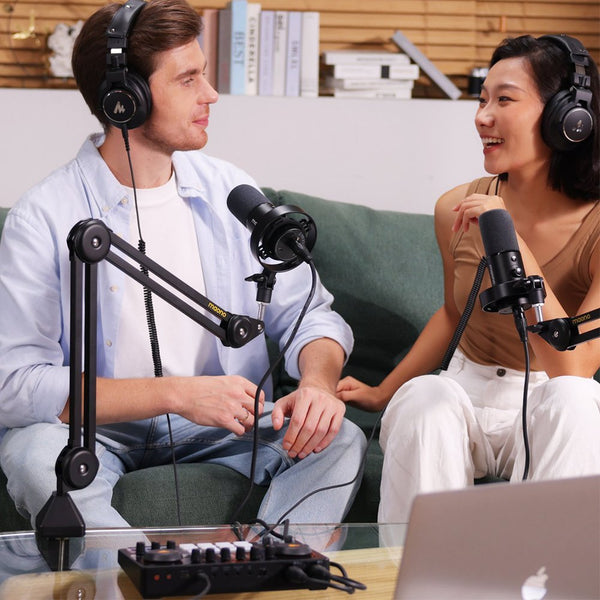
Creators work in different ways. You might record through an audio interface, connect directly to a laptop, or capture an interview on camera. The PD500W is designed to fit into the workflow you already know, giving you more flexible ways to connect and record without changing how you create.
That flexibility is the idea behind Professional Sound, Made Simple. Before choosing a path, consider what you are recording into, the equipment you already own and whether you can repeat the session if something goes wrong.

Four recording paths at a glance
| Connection | Best fit | Equipment or consideration |
|---|---|---|
| USB-C | Computer recording and streaming | Connect directly to a computer |
| XLR | An existing studio audio chain | Audio interface or mixer required |
| Wireless | Camera, phone and mobile production | Compatible receiver and device required |
| Internal recording | Standalone capture or an extra voice file | Saves microphone audio inside PD500W |
Tip: Internal recording works differently from the three connections. USB-C, XLR and wireless send a signal to another device. Internal recording saves a file in the microphone, either on its own or while a main connection is in use. And Internal recording can run alongside any of those main connections.
Watch: How to use the PD500W Hybrid
See how the PD500W works across wireless, USB-C, XLR and internal recording. This video walks through each recording path to help you choose a setup for your device and workflow.
Below, we look at where each path fits, what equipment you may need, and when internal recording can provide another copy of your audio.
USB-C for recording and streaming on a computer

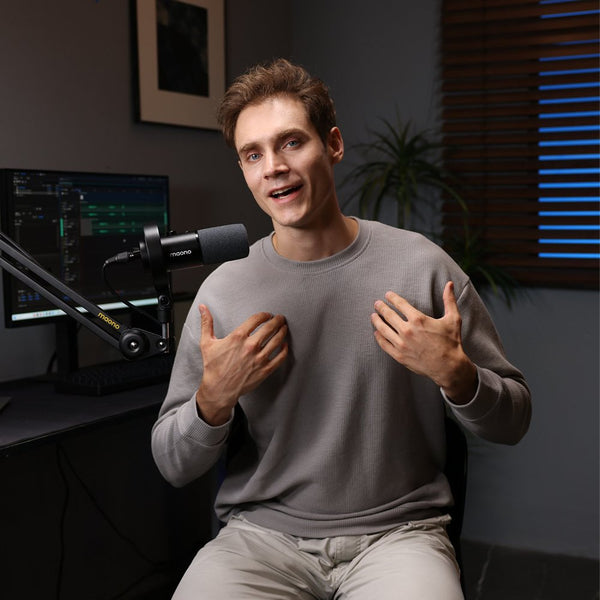
If your computer is the center of your setup, USB-C is a straightforward place to start. Connect PD500W to the computer, select it as the input in your recording or streaming application, and check the level before you begin.
This path suits a solo podcast, a voice-over for a video or a livestream from your desk. You do not need a separate audio interface simply to get the microphone signal into the computer. USB mode also supports MaonoLink digital processing, with available controls depending on the software platform and version.
A compact setup still needs a quick sound check. Make a short test recording, listen through headphones and confirm that your application has selected the microphone rather than the computer's built-in input. If you are streaming, check the saved recording as well as the live signal.
For a long conversation or a take you may not be able to repeat, start internal recording too. The computer remains your main recording device while the microphone keeps its own voice file.
USB is a useful choice when you want to keep your desk uncluttered and work in one application. For example, a creator making a weekly video essay can record the narration directly into editing software, then keep the same microphone ready for a live discussion. Check the selected input again when you change applications, since each program can keep its own audio settings.
XLR for an existing studio setup

XLR makes sense when you already have an audio interface or mixer. Connect PD500W to an available XLR input, set the input gain and route the signal into your recording software or mixer. This lets the microphone join a setup you already know how to operate.
An XLR workflow can suit a podcast studio, a voice actor using an established recording chain or a livestreamer who mixes audio through hardware. It also gives you access to the controls and routing provided by your interface or mixer. Those options depend on the equipment you own. If you are choosing between the two models, the PD500W and PD500X comparison explains their differences.
XLR does require additional equipment for a computer recording setup. The standard XLR output is an analog signal and does not carry MaonoLink digital processing. Adjustments made in your interface, mixer or recording software remain part of that separate audio chain.
You can still run PD500W internal recording alongside XLR. If the computer recording is interrupted, the microphone has another voice file to check. Test both paths before an important session so you know where each file will be saved.
When weighing a USB vs XLR microphone workflow, consider the equipment between your voice and the recording. USB sends audio directly to the computer; an XLR setup relies on a compatible interface or mixer. Either route can suit spoken content. Your preferred controls, available inputs and existing equipment are more useful guides than assuming that one connector always sounds better.
Wireless for camera and mobile production

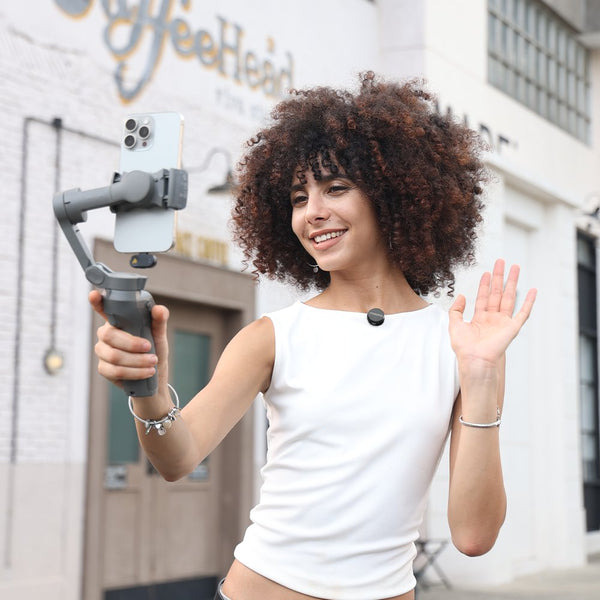
For an interview on camera or a video recorded on a phone, a cable back to the recording device may get in the way. PD500W can send audio wirelessly through a compatible receiver, giving you more freedom to position the microphone and recording device.
A video podcaster might connect the appropriate receiver to a camera, record the conversation and use the camera audio for the edit. A creator filming on a compatible phone can use the relevant receiver for that setup. Check your device, its input requirements and the accessories included in your chosen PD500W bundle before filming.
Wireless reduces the cable between the microphone and receiving device, but it is still worth checking the signal. Confirm that the camera or app is using the external microphone, monitor a short test and listen back before the interview starts. A visible audio meter alone may not tell you whether the correct input was selected.
When a guest has travelled for an interview or a reaction will happen only once, internal recording can provide an additional microphone file. If you use that file in the final edit, allow time to align it with the video.
A camera setup may also involve a separate receiver, cable and camera input, so give yourself time to connect each piece. For phone recording, confirm that the app you plan to use accepts the external input. Receiver and accessory availability varies by bundle. A short test in the actual recording app is a simple way to check the whole path before the subject starts talking.
Internal recording for another copy of your voice

PD500W can record audio inside the microphone without a computer, camera or audio interface. It can also record internally while you use USB-C, XLR or wireless as your main path. This makes a microphone with internal recording useful when a session is difficult to repeat.
Imagine recording an interview to a camera while the microphone also saves a local file. If the camera input was set incorrectly or the wireless signal was interrupted, the internal file gives you another recording to review. Transfer and check the file after the session rather than assuming every recording succeeded.
The internal recording contains audio picked up by the microphone. It does not capture the entire livestream mix, such as game audio, music, desktop sounds or remote guests. Your streaming or recording software still needs its own correctly configured audio tracks.
PD500W supports 32-bit float internal recording. That gives you room to adjust levels in post-production, but it does not replace good microphone placement or a sound check. Keep copies of finished recordings in more than one location.
After recording, export the microphone file to your computer and listen to a few sections, including the beginning and end. Give the file a clear name that matches the project and date. If it is a backup for camera footage, keep it with the video project so it is easy to find later. A local copy is most useful when you know how to retrieve it. For the controls and file transfer steps, see the PD500W user guide.
Choose a path for each creator workflow
Desktop podcast or livestream
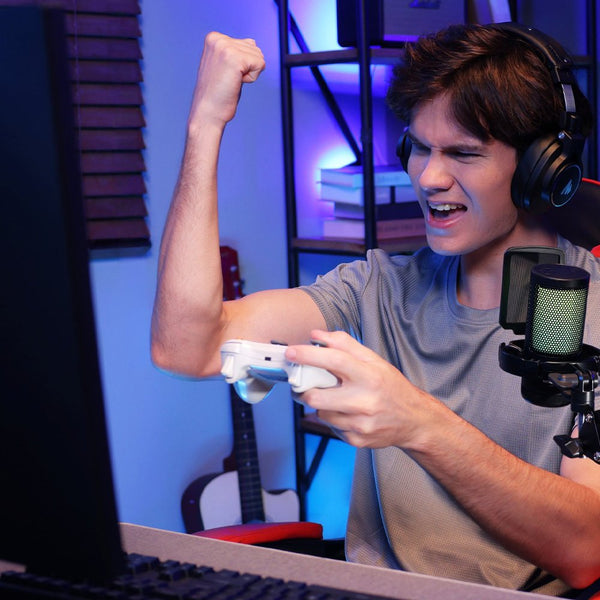
Use USB-C to connect PD500W directly to the computer running your recording or streaming software. Select the microphone input and monitor a short test. For an important conversation, enable internal recording so you have a separate microphone voice file as well.
Studio recording with an interface
If you already use an interface or mixer, connect through XLR and continue using your existing recording chain. Set gain on the external equipment and record into your usual software. Add internal recording when an additional local copy would be helpful.
Camera interview or on-location video
Use a compatible wireless receiver to send the microphone signal to the camera. Check the input and monitor a test before the guest starts speaking. Internal recording gives you another microphone file to review during editing.
A creator moving between devices
A solo creator may record a voice-over at a computer, film with a camera and later make a phone video. USB-C can handle the computer session; an appropriate wireless receiver can support compatible camera or phone workflows. The microphone stays familiar while the device receiving the audio changes. See how PD500W fits into real creator workflows for more examples of podcasting, video and livestream setups.
Four questions to help you choose
Start with the device that needs to receive your audio. For a computer, USB-C is a direct option. If you already have an interface or mixer, XLR may fit the setup you use every day. For a compatible camera or phone, consider whether a wireless receiver will make the recording easier.
Next, think about how you work. Do you need to move away from the recording device? Will a cable cross the shot? Finally, ask whether the conversation or performance can be repeated. If it cannot, consider running internal recording alongside the main path and check both files afterward.
Your choice can change between projects. A home studio owner may use XLR for a regular podcast but prefer wireless when filming an interview on a camera. Someone starting with USB-C can keep using the same microphone after adding an interface. Internal recording remains a separate option to consider for either session, especially when the performance cannot be recreated.
Frequently asked questions
Ⅰ. Can PD500W record internally while using USB, XLR or wireless?
Yes. Internal recording can run alongside any of those main connections. It can also operate on its own when you want to save audio inside the microphone.
Ⅱ. Can I use MaonoLink digital processing through XLR?
Standard XLR output is analog and does not carry MaonoLink digital processing. MaonoLink control is supported in USB and wireless modes; available controls depend on the platform and software version.
Ⅲ. Which receiver do I need for a camera or phone?
Choose a receiver compatible with your recording device and its input. Check the PD500W compatibility information and your selected bundle contents before purchasing or filming.
Ⅳ. Does internal recording capture the full livestream mix?
No. The microphone's internal file captures the audio picked up by the microphone. Your stream may also contain game audio, music, desktop sounds or remote guests, which need to be recorded through your streaming setup.
Should I choose a microphone connection based on my device?
Start with the device, then consider your existing equipment and how you record. A computer user may prefer USB-C, while someone with an interface may choose XLR. Wireless can suit compatible camera and phone setups.
Professional sound that fits your workflow
USB-C connects PD500W to a computer. XLR fits an existing interface or mixer. Wireless supports compatible camera and mobile setups, while internal recording gives you another way to save your voice.
The best recording setup is one that works for the way you create. With PD500W, you can stay with the equipment and process you already trust, then choose another recording path when you need it. One microphone gives you room to work at your desk, in the studio, or in front of a camera, without starting your setup from scratch.